

I 10 Migliori Software di Visualizzazione dei Dati nel 2026

10 Migliori software di data visualization - Scelta rapida


Orientarsi tra le complessità delle operazioni di ricavo non è semplice. Devi gestire montagne di dati che devono essere compresi rapidamente e con precisione. È qui che entra in gioco un software di data visualization. Trasforma numeri grezzi in rappresentazioni visive chiare, rendendo più facile per te e il tuo team prendere decisioni informate.
Ho testato e recensito numerose soluzioni software per aiutarti a trovare quella più adatta. In questo articolo, condividerò le mie scelte migliori, imparziali e frutto di una ricerca approfondita. Troverai informazioni su funzionalità, vantaggi e svantaggi, aiutandoti a scegliere lo strumento giusto per le tue esigenze.
Resta con me mentre esploriamo opzioni che possono far sì che i tuoi dati lavorino per te, non contro di te.
Perché fidarsi dei nostri consigli sui software
Le nostre recensioni riflettono il nostro giudizio indipendente, non un discorso di vendita. Scopri come manteniamo la trasparenza.
Per questa guida, abbiamo valutato gli strumenti attraverso test pratici e ricerche indipendenti, assegnando un punteggio agli strumenti in base ai nostri criteri di selezione.
Le nostre recensioni riflettono il nostro giudizio editoriale umano, non un discorso di vendita.
Riepilogo dei migliori software di data visualization
Questa tabella comparativa riassume i dettagli sui prezzi delle mie principali scelte di software di data visualization per aiutarti a trovare quello più adatto al tuo budget e alle esigenze della tua azienda.rn
| Tool | Best For | Trial Info | Price | ||
|---|---|---|---|---|---|
| 1 | Il miglior strumento scalabile per la visualizzazione dei dati. | Prova gratuita di 60 giorni per i nuovi utenti | Prezzi su richiesta | Website | |
| 2 | Ideale per la collaborazione sicura sui dati | Prova gratuita di 14 giorni disponibile | Prezzo su richiesta | Website | |
| 3 | Ideale per i clienti Zoho. | Prova gratuita di 15 giorni ospitando la piattaforma sul cloud | A partire da $24/mese con fatturazione annuale | Website | |
| 4 | Ideale per trasformare i dati in report interattivi | Piano gratuito disponibile | Da $29/mese | Website | |
| 5 | Ideale per dashboard conversazionali | Piano gratuito disponibile | Da $16/mese (fatturato annualmente) | Website | |
| 6 | Ideale per insight di marketing guidati dall’IA | Prova gratuita di 14 giorni + demo gratuita disponibile | A partire da $44/mese (fatturato annualmente) | Website | |
| 7 | Ideale per il lavoro multi-database | Prova gratuita di 21 giorni | A partire da $199/utente/anno (fatturazione annuale) | Website | |
| 8 | Ideale per le connessioni dati. | Prova gratuita di 14 giorni quando si sottoscrive un piano a pagamento | A partire da $99/mese con fatturazione annuale | Website | |
| 9 | Ideale per la creazione di infografiche. | Offre un piano gratuito per sempre | A partire da $19/mese con fatturazione annuale | Website | |
| 10 | La migliore analisi dei dati intuitiva. | Prova gratuita di 14 giorni per i nuovi utenti. | Da $15/utente/mese, fatturazione annuale | Website |

Recensioni sui migliori software di data visualization
Di seguito trovi i miei riepiloghi dettagliati dei migliori software di data visualization che sono entrati nella mia shortlist. Le mie recensioni offrono uno sguardo approfondito alle principali funzionalità, vantaggi e svantaggi, integrazioni e casi d’uso ideali di ciascuno strumento per aiutarti a trovare quello più adatto a te.rn
Il miglior strumento scalabile per la visualizzazione dei dati.
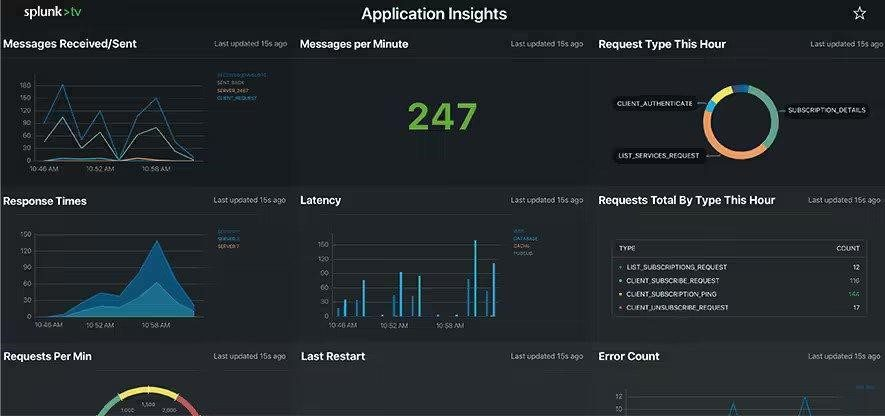
Splunk Enterprise permette agli utenti di visualizzare e agire sui risultati più rapidamente grazie all'intelligenza artificiale e al machine learning.
Perché ho scelto Splunk Enterprise: Puoi utilizzare le funzionalità di analisi AI e machine learning integrate nella piattaforma, oppure creare modelli personalizzati per gestire e visualizzare i dati. Semplifica la raccolta, la visualizzazione, l'analisi e l'azione sui dati. I tuoi modelli predittivi possono anche aiutarti a scoprire anomalie di fatturato e mostrare le informazioni in modo comprensibile a tutti.
Splunk Enterprise è adatto a organizzazioni di grandi dimensioni che vogliono creare storie di dati coinvolgenti e attuabili. I suoi strumenti aiuteranno te e i tuoi team a dare senso ai dati complessi e a permettere a tutti di individuare problematiche e opportunità di fatturato. Gli utenti di Splunk Enterprise possono costruire e personalizzare dashboard di visualizzazione dei dati per mostrare i dettagli più rilevanti a seconda degli scenari e del pubblico.
Funzionalità e integrazioni di rilievo di Splunk Enterprise
Funzionalità includono avvisi mobili, realtà aumentata, display TV, gestione di flotte di dispositivi mobili, dashboard personalizzate, monitoraggio dei dati, reportistica in tempo reale e un kit di strumenti per il machine learning.
Integrazioni includono Device42, Netreo, Clockspring, strongDM, ControlMap, Silent Push, ShadowKat, Codium, ScanFactory, GitGuardian, Tableau, Okta e OneLogin.
Pros and Cons
Pros:
- Recupero dei dati facile.
- Dashboard personalizzabili.
- Conserva grandi quantità di dati.
Cons:
- Curva di apprendimento ripida.
- Difficile da implementare.
Ideale per la collaborazione sicura sui dati
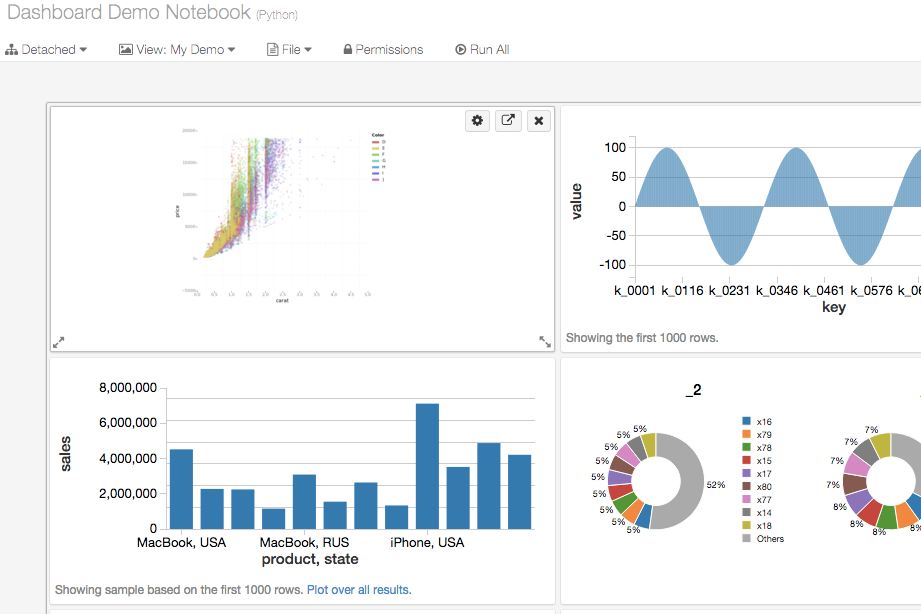
Databricks è una piattaforma di data intelligence basata su cloud che combina ingegneria dei dati, machine learning e analisi SQL—including dashboard AI/BI e esplorazione conversazionale dei dati—in un unico ambiente.
Per chi è meglio Databricks?
Databricks è una scelta ideale per data engineer, data scientist e analytics engineer in aziende di medie e grandi dimensioni che gestiscono ambienti dati complessi e su larga scala.
Perché ho scelto Databricks
Databricks è una delle mie scelte principali perché adoro come gestisce la collaborazione sicura sui dati a un livello che la maggior parte degli strumenti di visualizzazione non può eguagliare. Unity Catalog è al centro di tutto questo: puoi definire controlli di accesso granulari a livello di riga e colonna, classificare automaticamente dati sensibili come PII e applicare policy affinché ogni dashboard o query mostri solo ciò che un utente è autorizzato a vedere. Inoltre, i Databricks Clean Rooms permettono ai team di svolgere analisi congiunte su dati sensibili oltre i confini organizzativi, senza mai esporre i dati grezzi all’altra parte.
Funzionalità principali di Databricks
- Dashboard AI/BI: Costruisci dashboard interattive e condivisibili con filtri dinamici, navigazione drill-through e creazione di grafici assistita dall’IA direttamente sulla piattaforma.
- Analisi conversazionale Genie: Interroga i dati usando domande in linguaggio naturale per generare istantaneamente grafici e tabelle senza scrivere SQL.
- Visualizzazioni nei notebook: Crea grafici inline con diversi tipi di visualizzazione, inclusi grafici a dispersione, heatmap e mappe coropletiche, all’interno di notebook dati live.
- Previsioni supportate da IA: Applica previsioni predittive ai grafici dashboard esistenti per visualizzare le tendenze proiettate insieme ai dati storici.
Integrazioni Databricks
Databricks offre integrazioni validate con una vasta gamma di strumenti di terze parti tramite Partner Connect, coprendo l’ingestione dei dati, BI, machine learning e data governance. I partner BI e di visualizzazione includono Power BI, Tableau, Qlik Sense, Sigma Computing, ThoughtSpot, Hex e Preset, insieme a strumenti di ingestione dati come Fivetran e Informatica, e strumenti di trasformazione come dbt Cloud e Prophecy. Databricks è disponibile su Zapier e fornisce una REST API per integrazioni personalizzate.
Pros and Cons
Pros:
- Interroga e visualizza i dati su un’unica piattaforma
- Creazione di grafici assistita dall’IA tramite linguaggio naturale
- Supporta mappe coropletiche, Sankey e grafici di coorte
Cons:
- L’approccio orientato al codice limita gli utenti non tecnici
- Le opzioni di grafici integrate sono inferiori rispetto agli strumenti BI dedicati

Ideale per i clienti Zoho.
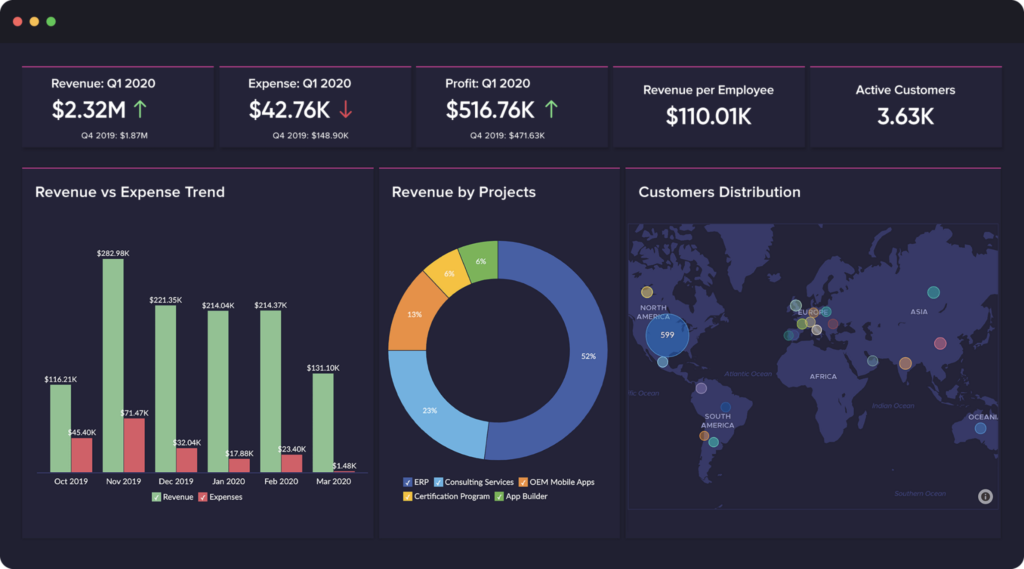
Zoho Analytics può integrarsi con altre applicazioni Zoho per aiutare gli utenti a collaborare e condividere visualizzazioni dei dati.
Perché ho scelto Zoho Analytics: Le organizzazioni che già utilizzano le altre applicazioni di Zoho apprezzeranno la possibilità di unificare diverse analisi aziendali all'interno dei reparti. Come altre applicazioni Zoho, Zoho Analytics offre connettori predefiniti per i più diffusi sistemi aziendali, cloud drive e database. Se conosci Zoho, potresti ricordare l'assistente AI Zia, creato dal fornitore utilizzando intelligenza artificiale, machine learning ed elaborazione del linguaggio naturale. Zia aiuta gli utenti a rispondere alle domande riguardanti le visualizzazioni dei dati.
Zoho Analytics è adatto a imprese di qualsiasi dimensione che cercano di creare eccellenti visualizzazioni di dati da più fonti e combinarle tra loro. La piattaforma consente di condividere e pubblicare report con i membri del team e partecipare a conversazioni. Inoltre, gli avvisi intelligenti sui dati di Zoho Analytics ti notificheranno quando vengono individuate anomalie o valori fuori norma.
Funzionalità e integrazioni di spicco di Zoho Analytics
Le funzionalità includono analisi dei dati, metriche sulle prestazioni, analisi predittiva, report ad hoc, visualizzazioni dei dati, analisi della redditività, dashboard pubblici e privati ed elaborazione di grandi volumi di dati.
Le integrazioni includono Pipedrive, Stripe, Mortar, Zendesk, Salesforce, Mailchimp, Google Analytics, Slack, HubSpot CRM, Zoho CRM, Dropbox, Microsoft OneDrive e Quickbooks.
Pros and Cons
Pros:
- Facile da apprendere.
- Guide e tutorial di aiuto utili.
- Crea report di analisi dei dati approfonditi.
Cons:
- L'assistenza clienti necessita di miglioramenti.
- L'app mobile non è intuitiva.
New Product Updates from Zoho Analytics

Zoho Analytics Adds Exogenous Variables to Multivariate Forecasting
Zoho Analytics introduces exogenous variables for multivariate forecasting using the VARX model. This helps forecasts account for external drivers such as marketing spend, discounts, and seasonality. For more information, visit Zoho Analytics’ official site.
 .
.
Signara
Ideale per trasformare i dati in report interattivi
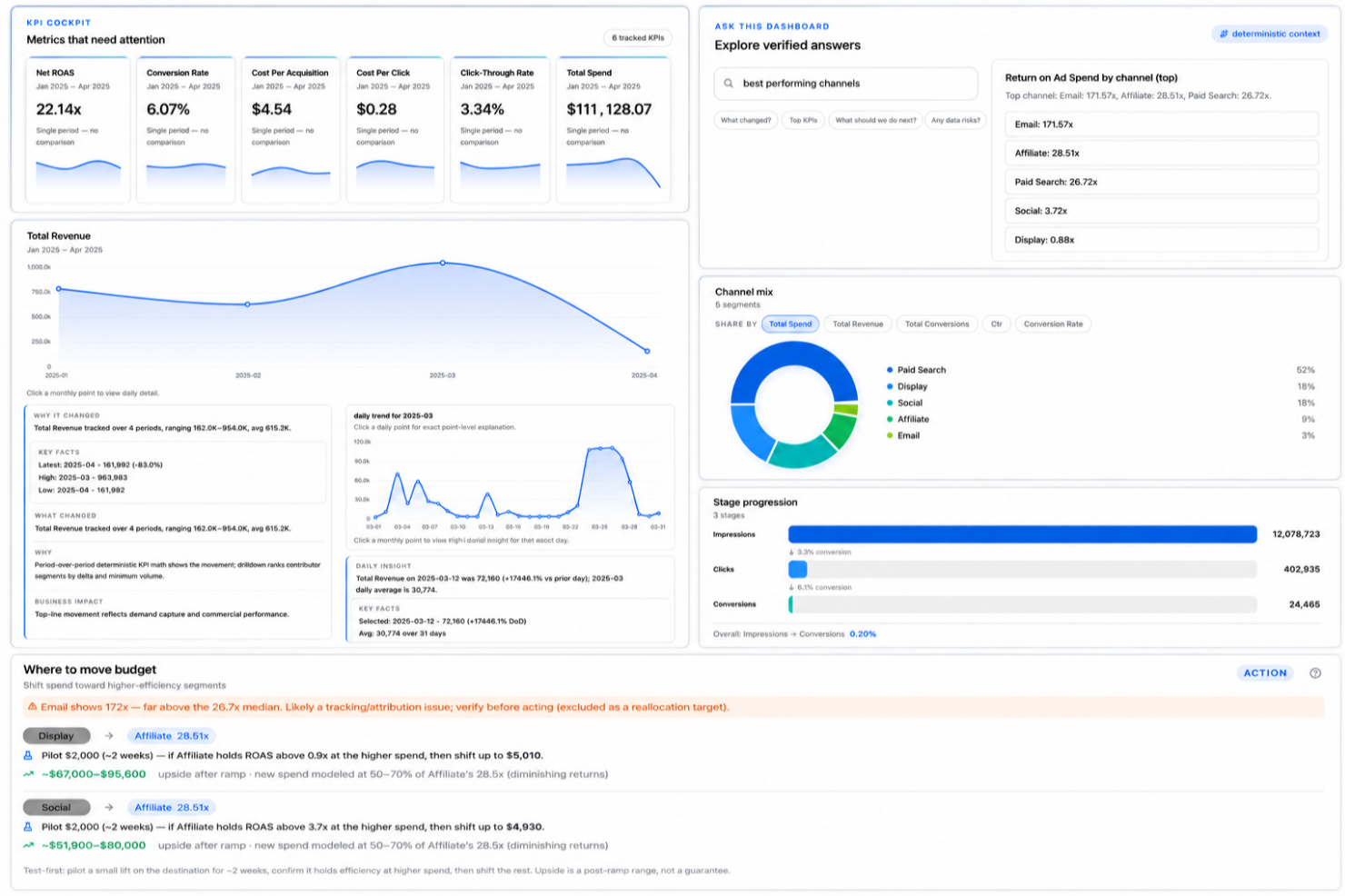
Signara è una piattaforma di analytics agentica per i team di marketing che automatizza il calcolo dei KPI, l'analisi dei driver e la generazione di dashboard e report a partire da fonti di dati collegate.
Per chi è più adatta Signara?
Signara è indicata per analisti marketing e team RevOps che necessitano di report automatizzati da più fonti di dati senza dover creare manualmente i report.
Perché ho scelto Signara
Ho inserito Signara tra le mie migliori scelte perché trasforma i dati grezzi di marketing in una dashboard condivisibile e interattiva con un singolo passaggio automatizzato. Mi piace particolarmente lo strato di analisi dei driver, che va oltre il semplice tracciamento dei valori dei KPI per svelare cosa ha effettivamente influenzato un numero e di quanto. Unito alla narrazione AI che genera una spiegazione verificabile e fondata insieme a ogni output, il mio team ottiene un quadro completo senza dover scrivere manualmente commenti o consultare report differenti.
Caratteristiche principali di Signara
- Motore KPI deterministico: Ogni metrica viene calcolata utilizzando formule in codice verificabili, così ogni numero in un report può essere collegato a una fonte attendibile.
- Query sui dati in linguaggio naturale: Scrivi una domanda come 'miglior canale per spesa' e Signara restituisce una risposta sui KPI direttamente estratta dal motore dati.
- Esportazione PPTX: Report e dashboard possono essere esportati come file PowerPoint pronti per la presentazione con un solo clic, senza bisogno di ulteriori formattazioni.
- Connettività dati multi-fonte: Collega dati live da magazzini come Snowflake, BigQuery e Databricks, o carica direttamente file Excel, CSV e Google Sheets.
Integrazioni di Signara
Signara si collega a Snowflake, Databricks, BigQuery, PostgreSQL, MySQL, HubSpot e Google Sheets, e accetta anche caricamenti di file Excel, CSV, TSV e JSON.
Pros and Cons
Pros:
- Raccomandazioni AI in ogni report
- Report generati da query in linguaggio naturale
- Tracciabilità completa per ogni calcolo
Cons:
- La configurazione richiede un elevato livello di pulizia dei dati
- Nessuna API disponibile per workflow personalizzati

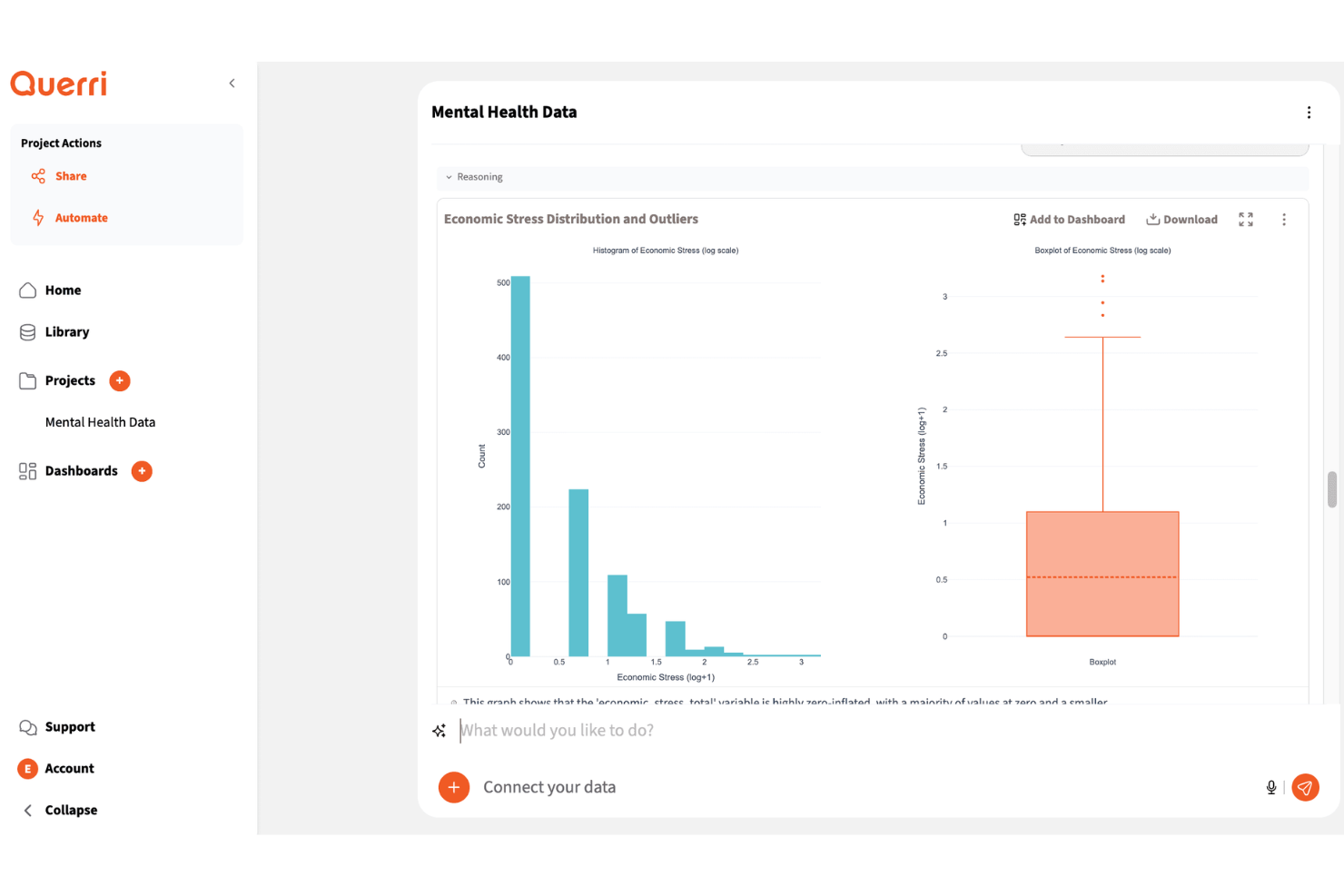
Querri è una piattaforma di visualizzazione dati che aiuta i team di marketing a trasformare dati frammentati di campagne, CRM e ricavi in dashboard e report. La sua analisi basata sull'intelligenza artificiale e le interrogazioni in linguaggio naturale la rendono utile per i marketer che desiderano ottenere insight più rapidamente senza dover dipendere troppo da SQL o report manuali.
Per chi è indicato Querri?
Querri è una scelta valida per i team di marketing e RevOps che necessitano di trasformare dati frammentati di campagne, CRM e ricavi in dashboard interattivi e report visivi.
Perché ho scelto Querri
Ho scelto Querri perché aiuta il tuo team a trasformare i dati frammentati di marketing, CRM e ricavi in dashboard conversazionali. Puoi porre domande in linguaggio naturale sui tuoi dati e ottenere risposte visive tramite grafici, tabelle e dashboard invece di dover costruire ogni report manualmente. Mi piace che supporta i connettori dati, il caricamento di file e i report automatici, il che aiuta i team a lavorare con dati provenienti da più fonti. Le sue opzioni di dashboard ed esportazione lo rendono inoltre utile per condividere performance delle campagne, trend di pipeline e insight sui ricavi con gli stakeholder.
Caratteristiche principali di Querri
Altre funzionalità di Querri supportano la visualizzazione dati, la reportistica e la condivisione degli insight:
- Report visivi personalizzati: Crea grafici, tabelle e report che aiutano i team a confrontare trend, performance e metriche chiave.
- Condivisione dashboard: Condividi dashboard tramite link, incorporamenti o file esportati per facilitare il reporting agli stakeholder.
- Permessi basati sui ruoli: Controlla chi può visualizzare o gestire le dashboard per proteggere dati aziendali sensibili.
- Strumenti di previsione: Analizza trend storici e dati di pipeline per supportare la pianificazione di ricavi e performance.
Integrazioni di Querri
Le integrazioni includono HubSpot, Salesforce, QuickBooks, Google Sheets, PostgreSQL, MySQL, SQL Server, BigQuery, Redshift e Google Drive.
Pros and Cons
Pros:
- Crea dashboard a partire da domande sui dati in linguaggio naturale
- Unisce fonti dati CRM, di fatturazione e marketing
- Esporta report in PowerPoint, PDF e Google Sheets
Cons:
- Il connettore Salesforce è ancora in fase di accesso anticipato
- Alcuni strumenti marketing e di fatturazione richiedono caricamento file

DashThis
Ideale per insight di marketing guidati dall’IA
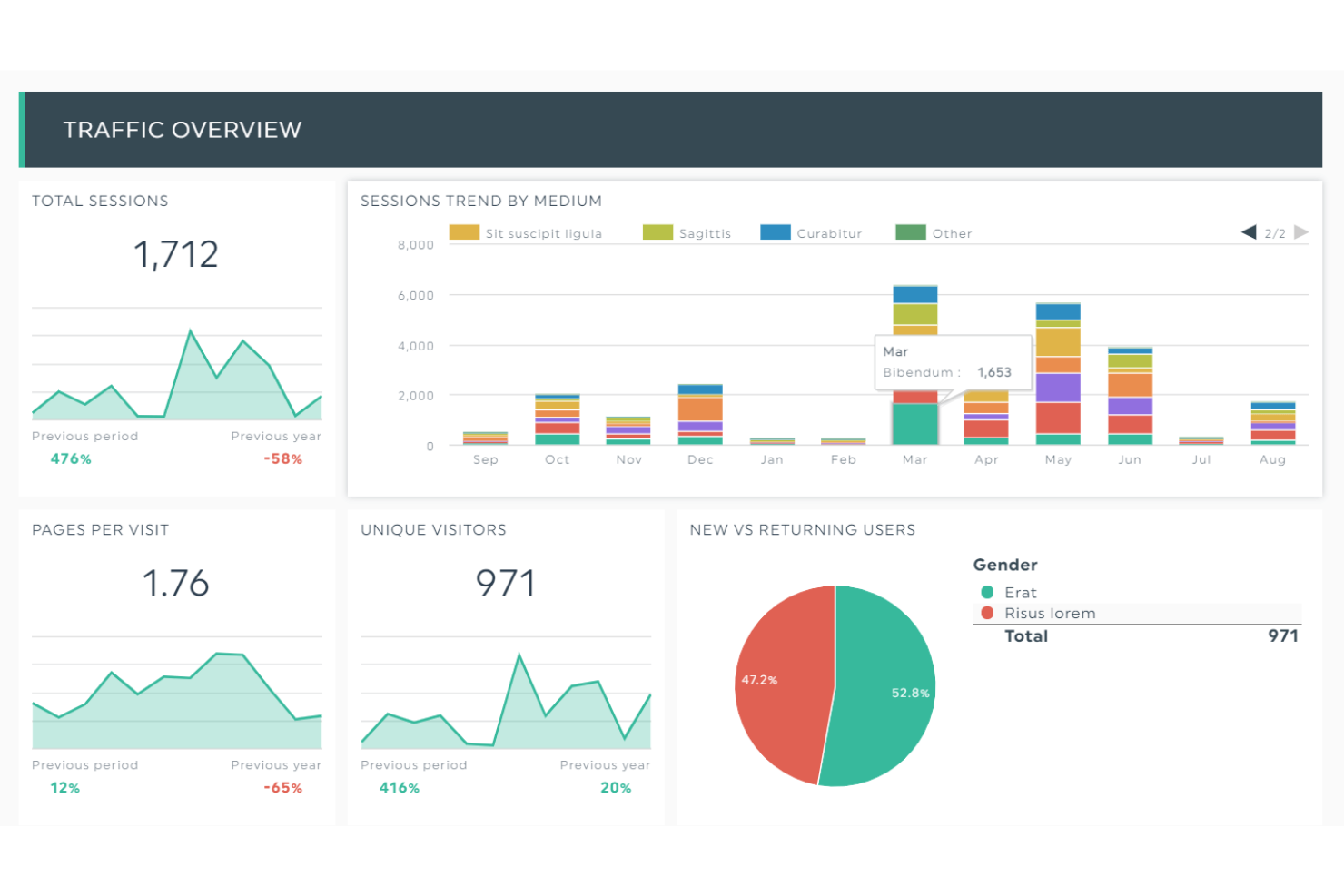
DashThis è uno strumento automatizzato di reportistica per il marketing che aiuta agenzie, aziende e organizzazioni non profit a trasformare dati di marketing complessi in dashboard visive e chiare. Grazie a modelli personalizzabili e opzioni white-label, rende più semplice presentare i risultati delle prestazioni in modo comprensibile per clienti e team.
Perché ho scelto DashThis: Ho incluso DashThis per la sua funzione AI Insights, attualmente in beta, che può fornire indicazioni utili a partire dai dati grezzi di marketing. Questo rende più facile individuare quali strategie stanno funzionando e dove potrebbero essere necessari aggiustamenti. Ho apprezzato anche il fatto che DashThis non limita il numero di utenti o sorgenti di dati, una caratteristica particolarmente utile se gestisci più account o campagne. Inoltre, le opzioni di report personalizzati della piattaforma lo rendono una scelta valida per le agenzie che necessitano di dashboard professionali e pronte per i clienti.
Caratteristiche e integrazioni distintive di DashThis
Caratteristiche includono dashboard personalizzabili, reportistica automatizzata con modelli preimpostati, report condivisibili via email o PDF e opzioni di branding white-label.
Integrazioni includono Google Ads, Google Analytics 4, Facebook Insights, Instagram Insights, LinkedIn Ads, Mailchimp, YouTube, Bing Ads, Pinterest Ads, SEMrush, TikTok Ads e HubSpot.
Pros and Cons
Pros:
- Accessibile per piccole imprese e agenzie
- Semplifica l’analisi e la reportistica di marketing
- Ampia gamma di integrazioni disponibili
Cons:
- Le opzioni estetiche potrebbero non soddisfare tutte le esigenze
- Personalizzazione limitata del design dei report
New Product Updates from DashThis
DashThis Adds Spotify Ads Integration
DashThis adds a Spotify Ads integration for bringing campaign spend, reach, impressions, clicks, and video views into dashboards. This helps teams report on audio campaigns alongside other advertising channels. For more information, visit DashThis’s official site.
 .
.
Ideale per il lavoro multi-database
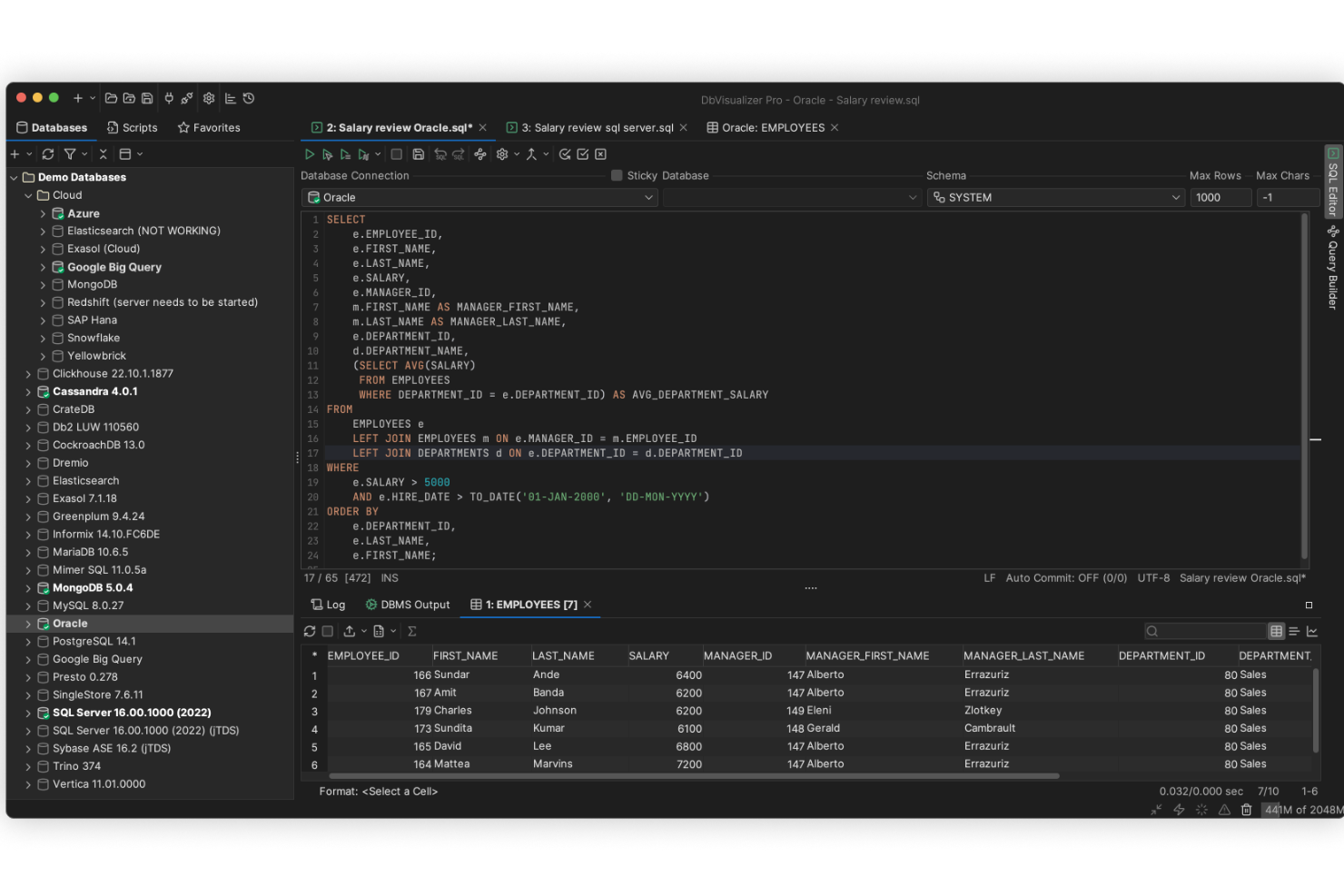
DbVisualizer offre un modo unificato per esplorare, interrogare e gestire praticamente qualsiasi database tu utilizzi — che tu sia un analista che approfondisce i report, uno sviluppatore che gestisce più fonti di dati, o un DBA che mantiene tutto in funzione senza intoppi. Con il supporto per dozzine di sistemi relazionali e NoSQL e un'interfaccia coerente su Windows, macOS e Linux, ti permette di trattare tutte le tue fonti dati nello stesso modo.
Perché ho scelto DbVisualizer
Ho scelto DbVisualizer perché offre una connettività universale ai database combinata con una navigazione flessibile dei dati — ciò significa che puoi collegarti a quasi qualsiasi database usando JDBC e iniziare subito a esplorare schemi, tabelle e dati senza dover usare strumenti diversi per ogni tipo di database. La sua capacità di gestire più connessioni simultanee e trattare DBMS differenti tramite un'unica interfaccia è particolarmente preziosa quando il tuo team utilizza un mix di database relazionali e NoSQL. Mi piace il fatto che non devi lottare con i driver o imparare molti strumenti specifici del fornitore. Per i team che desiderano un client database coerente e unico a prescindere dal backend, DbVisualizer è la scelta ideale.
Caratteristiche principali di DbVisualizer
Oltre alle sue capacità principali di connettività e gestione cross-database, DbVisualizer offre le seguenti funzionalità utili:
- Gestione Tabelle: La versione Pro consente di creare e modificare tabelle, definire vincoli ed esportare dati in più formati, offrendo flessibilità nella gestione dei dati.
- Controllo di Versione per Script SQL: con il supporto integrato per la versionatura degli script (ramificazioni, cronologia, modifiche), tu e il tuo team potete tracciare le modifiche nel tempo — utile quando più persone modificano query o oggetti di database.
- Monitoraggio e Confronto: La versione Pro permette agli utenti di monitorare i risultati SQL e confrontare i buffer dell'editor, facilitando il tracking delle prestazioni e i controlli di integrità dei dati.
- Sicurezza e Personalizzazione: Il software include una forte protezione tramite password e associazioni tasti personalizzabili nella versione Pro, garantendo sicurezza dei dati e adattabilità alle preferenze dell'utente.
Integrazioni DbVisualizer
DbVisualizer si integra nativamente con vari database come Oracle, SQL Server, MySQL, PostgreSQL, SQLite e altri, consentendo una connettività e una gestione dei dati senza interruzioni su diverse piattaforme.
Pros and Cons
Pros:
- Funziona con un'ampia gamma di database tramite supporto JDBC.
- Permette la modifica in linea dei dati come in un foglio di calcolo per cambi rapidi.
- Include opzioni di visualizzazione (grafici, tabelle) per i risultati delle query.
Cons:
- Dataset di grandi dimensioni possono occasionalmente influire sulle prestazioni.
- Non include un workflow integrato per la standardizzazione, la deduplicazione o la consolidazione dei record principali dei dati.
New Product Updates from DbVisualizer

DbVisualizer Adds AI Enhancements, Map Visualization, and SQL Tab Groups
DbVisualizer expands AI capabilities, introduces geospatial map visualization, and adds SQL Commander tab groups. The release also improves audit logging, database connection management, and database support to streamline development workflows. For more information, visit DbVisualizer's official site.
 .
.
Ideale per le connessioni dati.
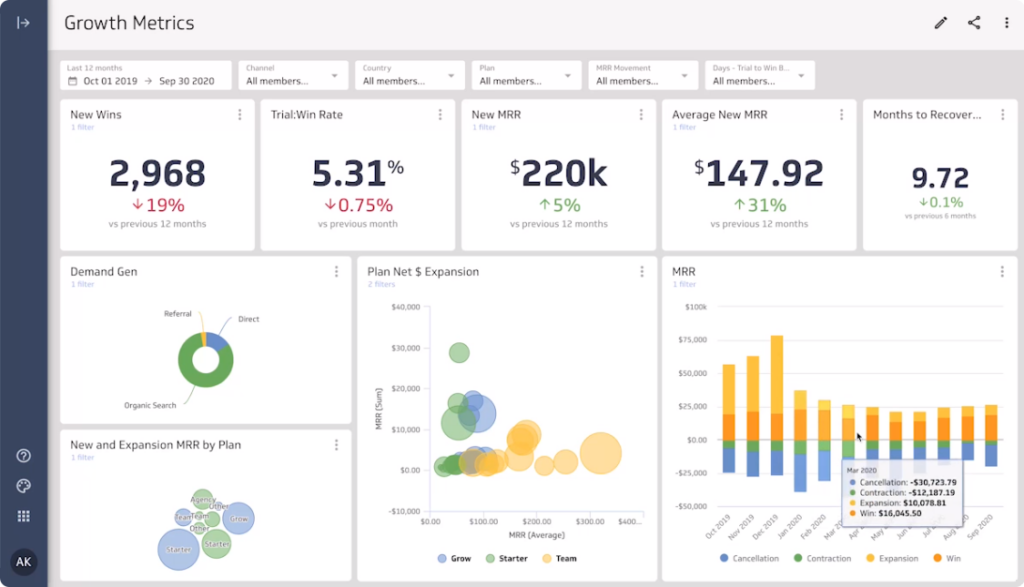
Klipfolio può accedere e combinare dati da centinaia di collegamenti senza scrivere codice inutile.
Perché ho scelto Klipfolio: può recuperare e combinare i tuoi dati da più fonti e creare modelli di dati utilizzando le sue metriche istantanee predefinite. Queste fonti includono fogli di calcolo, file, database e connessioni a servizi applicativi web. Klipfolio ti consente di importare, modificare e analizzare i dati per ottenere informazioni esatte e complete. Puoi visualizzare i tuoi dati utilizzando una delle visualizzazioni predefinite della piattaforma dalla sua Klip Gallery.
Klipfolio è adatto a qualsiasi azienda che desidera visualizzare formule di dati complesse per risolvere problematiche legate ai ricavi. Lo strumento PowerMetrics non richiede competenze di programmazione né aiuto tecnico da un team di sviluppo. Tu e i tuoi team potete condividere visualizzazioni e report tramite link solo visualizzazione, email programmate, messaggi Slack o PDF.
Caratteristiche e integrazioni principali di Klipfolio
Le funzionalità includono metriche sulle prestazioni, analisi visiva, analisi dei dati, report ad hoc, dashboard pubblici e privati, esplorazione dei dati, creazione di dashboard e viste filtrate.
Le integrazioni includono Jira, Freshdesk, BambooHR, SendGrid, Twilio, Pipedrive, Recurly, New Relic, FreshBooks, Stripe, Basecamp, Zendesk, Salesforce e Google Analytics.
Pros and Cons
Pros:
- Eccellente supporto clienti.
- Ampia base di conoscenza.
- I dashboard si adattano a qualsiasi dispositivo.
Cons:
- Curva di apprendimento ripida.
- La modifica delle formule è complessa.

Infogram
Ideale per la creazione di infografiche.
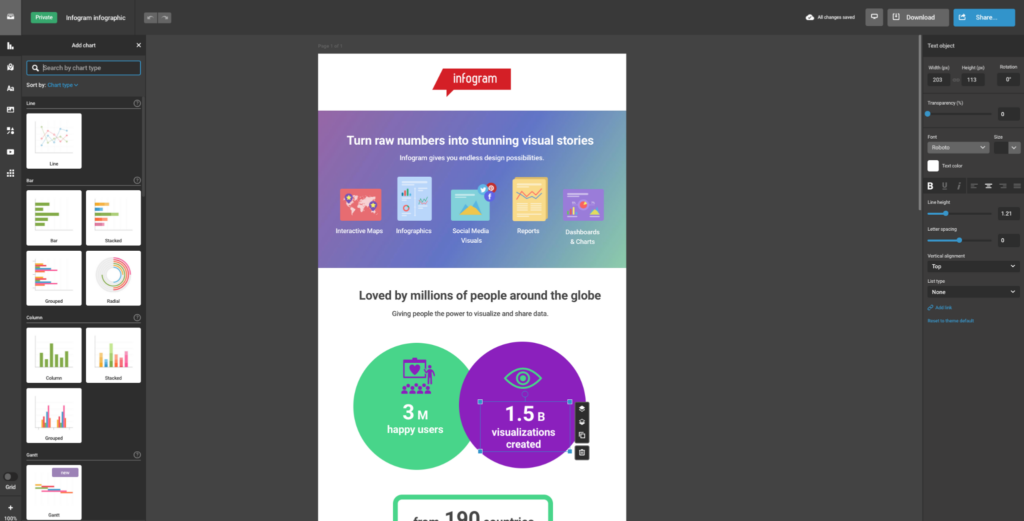
Infogram è uno strumento di visualizzazione dei dati con funzionalità drag-and-drop che consente a chiunque di creare infografiche accattivanti, report, dashboard e altre grafiche aziendali essenziali.
Perché ho scelto Infogram: Questo strumento web-based è una delle piattaforme più popolari per la visualizzazione dei dati. L'uso principale di Infogram è aiutare gli utenti a creare infografiche, dashboard e report coinvolgenti e interattivi attraverso informazioni basate sui dati. La piattaforma offre agli utenti numerose opzioni grafiche per realizzare infografiche, tra cui oltre 550 mappe, 35 grafici, 20 modelli e altre immagini e icone.
Infogram è perfetto per tutti, dai principianti che si avvicinano alla creazione di visualizzazioni di dati fino alle grandi aziende. La libreria di modelli di dashboard offre alle aziende numerosi layout di visualizzazione ideali per monitorare i dati e identificare tendenze. Dispone inoltre di numerose funzionalità di collaborazione: puoi invitare membri del team ai progetti, impostare permessi, condividere dettagli sui progetti e collaborare in tempo reale.
Funzionalità e integrazioni di spicco di Infogram
Funzionalità includono mappe interattive e grafici, report, dashboard, pubblicazione di contenuti online, infografiche, post per i social media, presentazioni e analisi.
Integrazioni includono Desktop.com, Google Analytics, Dropbox, Microsoft OneDrive, Google Drive, Shift, Azquo e Turtl.
Pros and Cons
Pros:
- Gestisce molteplici fonti di dati.
- Editor drag and drop.
- Non sono necessarie competenze di programmazione.
Cons:
- Poche integrazioni disponibili.
- Alcune limitazioni nella personalizzazione.

Tableau
La migliore analisi dei dati intuitiva.
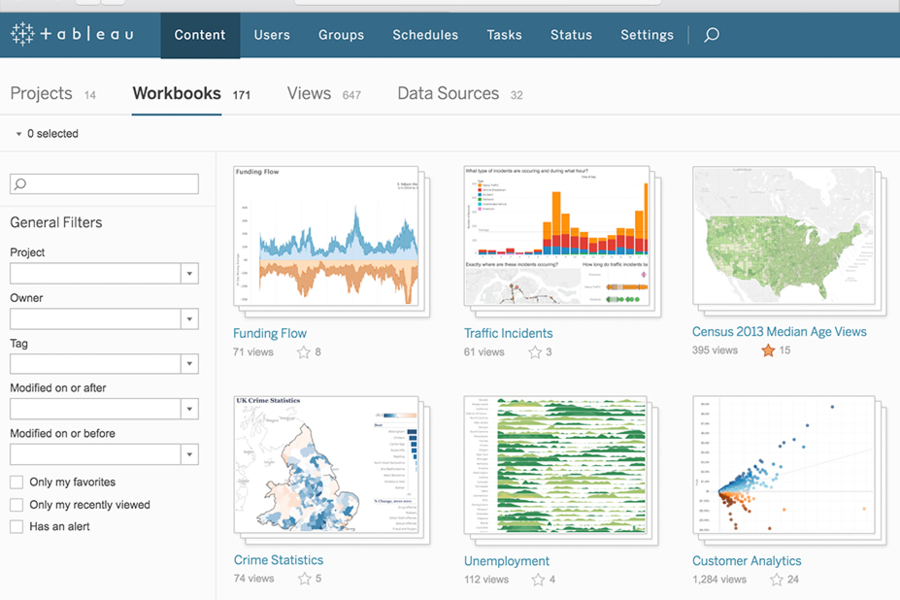
Tableau offre le migliori pratiche visive integrate che consentono un'esplorazione illimitata dei dati visivi senza interrompere il flusso di analisi.
Perché ho scelto Tableau: Grazie alla flessibilità e alla potenza della piattaforma, gli utenti possono sviluppare modelli statistici per creare visualizzazioni, esplorare i dati e condividere approfondimenti. Puoi fare tutto ciò in pochi clic e ponendo domande utilizzando l'elaborazione del linguaggio naturale e l'intelligenza artificiale di Tableau. Ti farà risparmiare tempo, così come al tuo team, producendo immediatamente i risultati visivi di cui tutti hanno bisogno, garantendo inoltre elevati livelli di sicurezza e la risoluzione tempestiva delle criticità di sicurezza.
Tableau è adatto a aziende di qualsiasi dimensione che necessitano di un metodo per creare quasi ogni tipo di visualizzazione dati. Questo include dai grafici semplici a rappresentazioni grafiche creative e interattive. Il fornitore mette inoltre a disposizione risorse approfondite e una knowledgebase arricchita dal contributo di altri utenti Tableau.
Funzionalità e integrazioni distintive di Tableau
Le funzionalità includono gestione dei dati, connessioni virtuali ai dati, governance dei dati, tracciabilità e qualità dei dati, preparazione autonoma dei dati, viste coordinate, strumenti di collaborazione ed esplorazione dei dati in tempo reale.
Le integrazioni includono Salesforce, Google Analytics, Smartsheet, SurveyMonkey, Zoho Survey, Amplitude, Odoo, Normalyze, Aprimo, Data Sandbox, Pendo, Khoros e Payscale.
Pros and Cons
Pros:
- Eccellenti capacità di visualizzazione.
- Design intuitivo per l’utente.
- Gestisce grandi quantità di dati.
Cons:
- Curva di apprendimento ripida.
- Scaricare i dati richiede tempo.
Altri software di data visualization
Qui trovi alcune ulteriori opzioni di software di data visualization che non sono entrate nella mia shortlist, ma che vale comunque la pena considerare:rn
- Qlik
Ideale per principianti.
- Adverity
Ideale per l'integrazione dati senza interruzioni
- Looker
Ideale per creare piattaforme dati accessibili.
- Domo
Le migliori dashboard dati personalizzabili.
- Sisense
Le migliori visualizzazioni dati self-service.
- SAP Crystal Server
Ideale per la condivisione di dashboard personalizzati.
- Strategy
Ideale per visualizzazioni drag-and-drop.
- Athenic
Ideale per insight sui dati conversazionali e potenziati dall'IA
- Adobe Customer Journey Analytics
Ideale per la mappatura in tempo reale dei percorsi cross-canale
- Datawrapper
Miglior strumento open source per la visualizzazione dei dati.


Come Valuto il Software di Visualizzazione Dati
Divido la mia valutazione in due livelli: criteri di base che uno strumento deve soddisfare per qualificarsi—come dashboard interattive—e fattori differenzianti che distinguono le migliori opzioni.
Funzionalità di Base (Requisiti Fondamentali per Questa Lista)
Quando seleziono gli strumenti per la mia lista, valuto ciascuno su una scala da 0 (non offre la funzionalità) a 5 (eccelle in questa area) per ogni funzionalità principale elencata di seguito. Quindi calcolo il punteggio totale dello strumento convertendolo in percentuale. Ogni strumento deve raggiungere un punteggio totale minimo del 65% per essere considerato per l'inclusione.
- Dashboard Interattive: Verifico se le dashboard supportano il cross-filtering, i drill-down e parametri dinamici così che gli utenti possano analizzare i dati della pipeline senza creare viste separate.
- Connettori a Dati Multi-Sorgente: Valuto i connettori nativi per CRM come Salesforce e HubSpot, piattaforme di marketing, sistemi di fatturazione e data warehouse come Snowflake e BigQuery.
- Varietà di Tipi di Grafici: Oltre a grafici a barre e linee, cerco funnel, coorti, mappe di calore e diagrammi a dispersione adatti a visualizzare tassi di conversione e velocità delle trattative.
- Modelizzazione e Trasformazione dei Dati: Considero se è possibile unire set di dati, creare campi calcolati e definire metriche riutilizzabili come ARR o pipeline pesata direttamente nello strumento.
- Condivisione e Collaborazione: I team hanno bisogno di permessi basati sui ruoli, consegna programmata dei report e opzioni di embedding affinché dirigenti e commerciali vedano le dashboard corrette al momento giusto.
- Frequenza di Aggiornamento dei Dati: Valuto la frequenza con cui le dashboard recuperano i dati aggiornati, cercando connessioni in tempo reale o cicli di aggiornamento quasi istantanei che mantengano le previsioni aggiornate.
Una volta identificati gli strumenti che soddisfano i criteri, considero ciò che distingue ciascuna piattaforma.
Fattori Differenzianti (Cosa Distingue i Fornitori)
Ecco come confronto e metto a confronto i diversi fornitori:
Funzionalità Distintive
Cerco approfondimenti basati sull'IA che segnalino anomalie nei dati della pipeline—come un improvviso calo nella conversione da una fase all'altra—senza richiedere indagini manuali. Sono importanti anche i template RevOps predefiniti perché permettono ai team di lanciare dashboard funnel e di previsione in poche ore invece che settimane. Un'altra differenziazione che valuto è l'analisi incorporata; gli strumenti che inseriscono dashboard in tempo reale nei record Salesforce o nei canali Slack mantengono commerciali e manager nel loro flusso di lavoro quotidiano.
Oltre Le Funzionalità
La profondità d'integrazione con lo stack GTM conta—verifico se uno strumento si collega nativamente a CRM, piattaforme di marketing automation e data warehouse senza richiedere middleware. La struttura dei prezzi è altrettanto importante; alcuni fornitori fanno pagare per visualizzatore mentre altri adottano modelli basati sulla capacità, quindi valuto se stakeholder come dirigenti e commerciali possono accedere alle dashboard senza far aumentare i costi. Esamino anche la sicurezza a livello di riga e il supporto per SSO, visto che le dashboard RevOps spesso contengono dati sensibili sulla pipeline e sulle retribuzioni che richiedono controlli di accesso basati sul territorio.
Come scegliere un software di data visualization
È facile perdersi tra lunghe liste di funzionalità e strutture di prezzo complicate. Per aiutarti a restare concentrato durante il tuo processo personale di selezione del software, ecco una checklist di fattori da tenere presenti:
| Fattore | Cosa considerare |
|---|---|
| Scalabilità | Il software crescerà con la tua azienda? Controlla se gestisce grandi volumi di dati e supporta più utenti man mano che aumentano le tue esigenze. |
| Integrazioni | Si collega ai tuoi strumenti già in uso? Assicurati che si integri con CRM, database e altre piattaforme essenziali per evitare l'inserimento manuale dei dati. |
| Personalizzazione | Può essere adattato al tuo flusso di lavoro? Cerca la possibilità di personalizzare dashboard, report e permessi utente per adattarli alle esigenze del tuo team. |
| Facilità d’uso | È intuitivo? Scegli un software con un'interfaccia user-friendly per ridurre i tempi di formazione e migliorare l’adozione nel tuo team. |
| Implementazione e onboarding | Quanto è semplice il processo di configurazione? Valuta il tempo e le risorse necessari per l’implementazione, incluso il supporto o la formazione offerti dal fornitore. |
| Costo | Rientra nel tuo budget? Confronta i diversi piani di prezzo, fai attenzione a eventuali costi nascosti e valuta i costi a lungo termine rispetto ai benefici. |
| Sicurezza | Come protegge i tuoi dati? Cerca funzioni come la crittografia, il controllo degli accessi utente e la conformità alle normative sulla protezione dei dati. |
| Disponibilità dell’assistenza | Riceverai supporto quando necessario? Verifica la disponibilità di assistenza 24/7, i tempi di risposta e la presenza di documentazione dettagliata o di community di utenti. |
Tendenze
I software di visualizzazione dei dati stanno diventando sempre più sofisticati, offrendo funzionalità avanzate che rispondono a una gamma più ampia di esigenze aziendali, in particolare nella gestione delle operazioni sul fatturato. Ecco un'analisi delle tendenze attuali basata su aggiornamenti recenti dei prodotti, comunicati stampa e log di rilascio:
Integrazione e interoperabilità:
- Integrazione dati senza soluzione di continuità: Capacità migliorate per integrare fonti di dati eterogenee, fornendo una vista unificata cruciale per un'analisi completa del fatturato.
- Compatibilità multipiattaforma: Attenzione crescente nell'assicurare che gli strumenti di visualizzazione dei dati funzionino senza problemi su diverse piattaforme e dispositivi, consentendo agli utenti di accedere alle informazioni ovunque e in qualsiasi momento.
Funzionalità analitiche avanzate:
- Analisi predittiva: Integrazione dell'analisi predittiva negli strumenti di visualizzazione dei dati, permettendo alle aziende di prevedere tendenze e prendere decisioni proattive.
- Generazione automatica di insight: Utilizzo dell'intelligenza artificiale per identificare e mettere in evidenza automaticamente i principali punti e tendenze dei dati, riducendo il tempo necessario per l'analisi manuale.
Tipologie innovative di visualizzazione:
- Visualizzazioni immersive: Introduzione delle tecnologie VR e AR per creare esperienze di visualizzazione dei dati immersive, offrendo nuove prospettive nell'analisi dei dati.
- Streaming dati in tempo reale: Funzionalità per la visualizzazione di dati in streaming in tempo reale, permettendo risposte immediate a nuove tendenze e problematiche.
Collaborazione e condivisione:
- Funzionalità di collaborazione avanzate: Strumenti che facilitano la collaborazione tra i membri del team, compresi dashboard condivisi e report interattivi, fondamentali per allineare le strategie operative sul fatturato.
- Meccanismi sicuri di condivisione: Miglioramento delle funzionalità di sicurezza per la condivisione delle visualizzazioni dei dati, garantendo che i dati sensibili relativi al fatturato siano protetti pur consentendo decisioni informate a livello di team.
Queste tendenze riflettono la crescente consapevolezza del valore strategico della visualizzazione dei dati nel guidare il successo aziendale, in particolare nel contesto delle operazioni legate ai ricavi. Quando si sceglie uno strumento di visualizzazione dati, le organizzazioni dovrebbero tenere conto di queste tendenze per assicurarsi una soluzione che rimanga rilevante e preziosa di fronte al rapido cambiamento tecnologico.
Cos'è un software di visualizzazione dei dati?
Un software di visualizzazione dei dati è uno strumento che trasforma dati grezzi in formati visivi come grafici, diagrammi e dashboard. Professionisti come analisti, marketer e dirigenti utilizzano questi strumenti per comprendere i dati e prendere decisioni informate. Funzionalità come aggiornamenti dei dati in tempo reale, integrazioni e personalizzabilità facilitano l'analisi di set di dati complessi e la condivisione delle informazioni. In generale, questi strumenti rendono i dati più facili da interpretare e da utilizzare.
Caratteristiche
Quando selezioni un software di visualizzazione dei dati, fai attenzione alle seguenti caratteristiche chiave:
- Aggiornamenti in tempo reale: Permettono agli utenti di visualizzare i dati più attuali, aiutando a prendere decisioni tempestive.
- Dashboard interattivi: Consentono agli utenti di esplorare i dati tramite grafici e tabelle cliccabili per approfondimenti più dettagliati.
- Integrazioni: Si collegano senza difficoltà con altri strumenti come CRM e database per centralizzare i dati.
- Personalizzabilità: Permette agli utenti di adattare le visualizzazioni alle esigenze specifiche e al proprio branding.
- Interfaccia intuitiva: Semplifica la navigazione e riduce il tempo di apprendimento per i nuovi utenti.
- Opzioni di import/export dati: Facilita il trasferimento semplice dei dati all'interno e all'esterno del software per la reportistica.
- Tutele di sicurezza: Protegge i dati sensibili attraverso crittografia e controlli di accesso.
- Accesso mobile: Offre accesso ai dati ovunque ti trovi, garantendo agli utenti la possibilità di consultare le informazioni in movimento.
- Analisi avanzate: Fornisce strumenti per previsioni e analisi approfondite dei dati, a supporto della pianificazione strategica.
Vantaggi
L'implementazione di un software di visualizzazione dei dati offre numerosi vantaggi per il tuo team e la tua azienda. Eccone alcuni a cui puoi guardare con interesse:
- Miglioramento del processo decisionale: Le visualizzazioni aiutano i team a comprendere rapidamente le tendenze dei dati e a prendere decisioni informate.
- Collaborazione potenziata: I dashboard interattivi permettono ai membri del team di condividere facilmente le informazioni e lavorare insieme in modo più efficace.
- Risparmio di tempo: L'aggiornamento automatico dei dati e le integrazioni riducono l'inserimento manuale dei dati e lo sforzo nella creazione di report.
- Migliore comprensione dei dati: Formati visivi come grafici e diagrammi semplificano i dati complessi, rendendoli più facili da interpretare.
- Aumentata accessibilità: L’accesso mobile garantisce agli utenti la possibilità di visualizzare e analizzare i dati ovunque e in qualsiasi momento.
- Supporto alla scalabilità: Con la crescita dell’azienda, il software può gestire set di dati più ampi e più utenti senza difficoltà.
- Sicurezza dei dati: Potenti funzionalità di sicurezza proteggono le informazioni sensibili, mantenendo l'integrità e la conformità dei dati.
Costi e prezzi
La scelta di un software di visualizzazione dati richiede la comprensione dei diversi modelli e piani tariffari disponibili. I costi variano in base alle funzionalità offerte, alla dimensione del team, agli add-on e ad altri fattori. La tabella seguente riassume i piani più comuni, i prezzi medi e le funzionalità tipiche incluse nelle soluzioni di software di visualizzazione dati:
Tabella comparativa dei piani per software di visualizzazione dati
| Tipo di piano | Prezzo medio | Funzionalità comuni |
|---|---|---|
| Piano gratuito | $0 | Grafici di base, fonti dati limitate e supporto dalla community. |
| Piano personale | $10-$30/user/month | Dashboard personalizzabili, integrazione con più fonti dati e supporto via email. |
| Piano business | $50-$100/user/month | Analisi avanzata, supporto prioritario, strumenti di collaborazione e accesso mobile. |
| Piano enterprise | $100+/user/month | Personalizzazione totale, aggiornamento dati in tempo reale, account manager dedicato e funzioni di sicurezza avanzate. |
FAQ sul Software di Visualizzazione Dati
Ecco alcune risposte alle domande comuni sul software di visualizzazione dati:rn
Quali sono i tipi di software per la visualizzazione dei dati?
Perché è importante la visualizzazione dei dati?
Quali altri strumenti di Data Analytics dovrei utilizzare?
E ora?
Se stai cercando un software per la visualizzazione dei dati, collegati con un consulente di SoftwareSelect per raccomandazioni gratuite.
Compili un modulo e fai una breve chiacchierata in cui vengono approfondite le tue esigenze specifiche. Poi riceverai una lista ristretta di software da valutare. Ti supporteranno anche in tutto il processo d'acquisto, comprese le trattative sul prezzo.